
4 Tech Tips for Looking Better on Video Calls
“Professionalism often begins before you say a word.” — Anonymous
Video calls have become a normal part of doing business.
Whether you are meeting with a client, joining a team meeting, recording a podcast, or giving a presentation, how you look and sound on camera matters.
It does not mean you need a professional studio.
But a few small changes can make you look more polished, more prepared, and more professional.
Here are four tech tips for looking better on video calls.
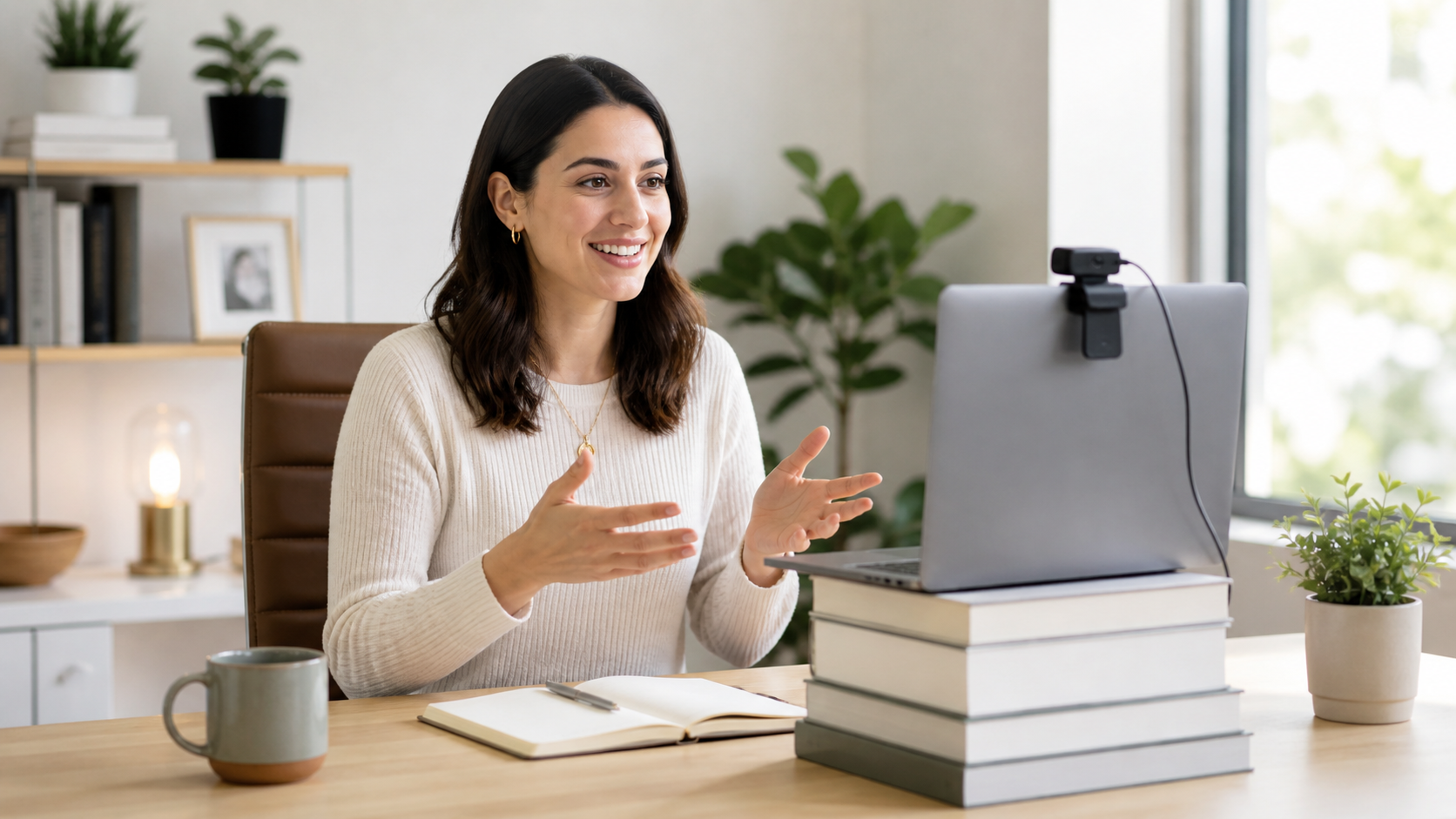
To put your camera at eye level, you may need to stack items under your computer, or use a separate camera
Put your camera at eye level
One of the easiest ways to improve your video call setup is to raise your camera. When most people take video calls, they simply tilt their laptop up or down to adjust the camera, or they simply leave too much or too little room between the top of the head, and top of the screen. This makes you look small, and is generally unflattering. If your laptop is sitting low on a desk, the camera will be looking up at you. This, of course, is not a great angle.
Put your laptop on a stand, a stack of books or items in your office or location—anything stable that gets your camera closer to eye level. This makes the shot feel more natural. It also helps you look more confident and engaged.
If you are using a webcam, you may run into the same issues, since they usually mount in roughly the same place as the internal camera, so be sure that your camera is as close to eye level as possible.
If you are using a camera on a tripod, the same rule applies, but you don’t necessarily need to stack items under your laptop, since the reason for that was to elevate the internal camera, or webcam.
Companies like Elgato make a teleprompter that mounts on or over your desktop or laptop monitor. The camera mounts to the prompter unit, and you can use the prompter’s monitor to display the web conferencing software you are using. This is helpful, because now you will be able to look at that camera, while you are also looking directly at your fellow participants, and this creates a more conversational vibe. You can find information by clicking HERE.
The important thing to remember is that you want to be looking straight at your camera, and you want your shot composed properly, without too much or too little headroom.
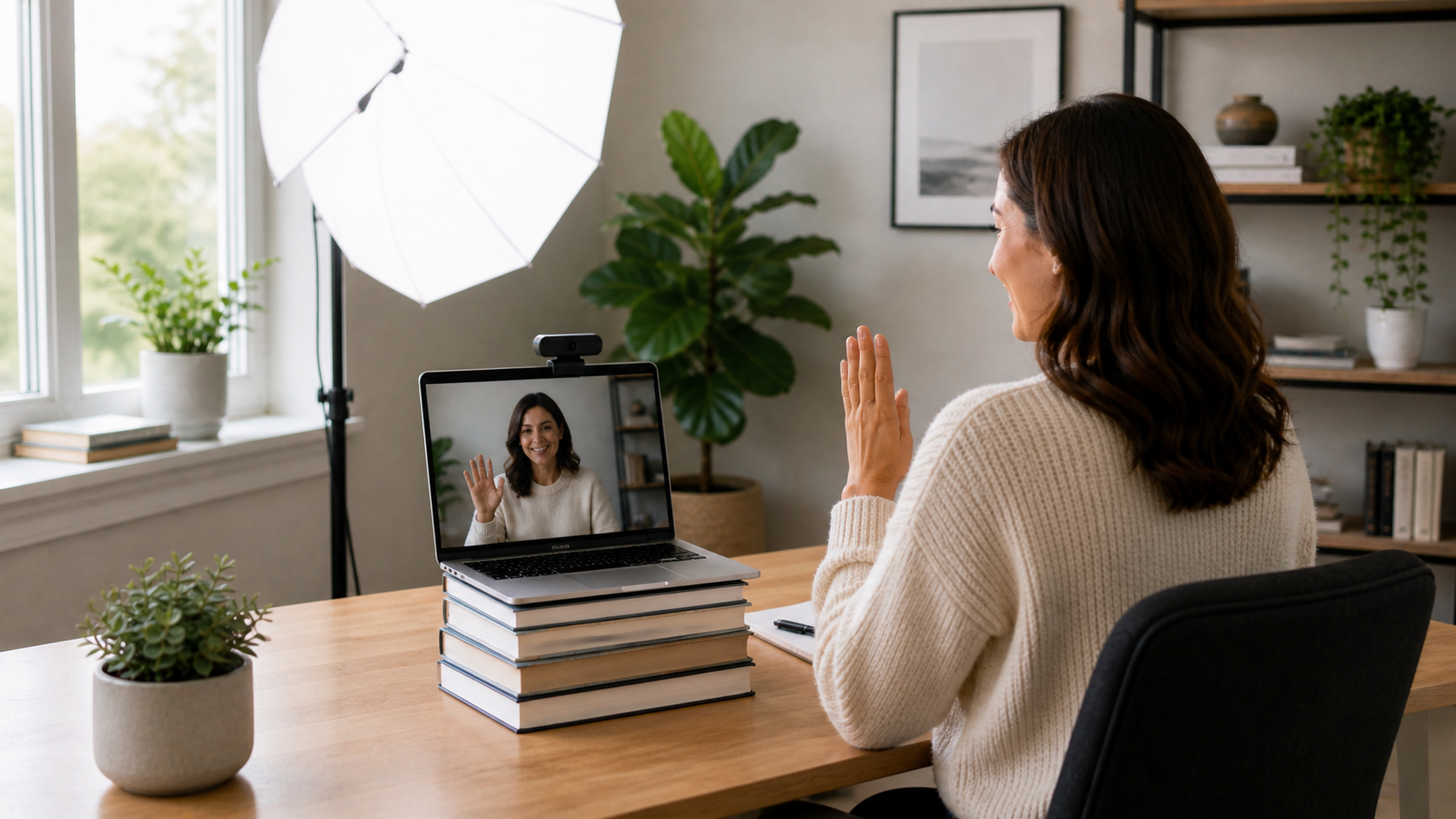
Facing the direction of your light source ensures your face is visible to your fellow participants
Face your light source
Lighting makes a huge difference. Your face will look dark if the brightest light is behind you. It creates a silhouetted look, similar to what you see when people are interviewed, but wish to remain anonymous. This is fine for true crime shows, but it’s not a good look for your next meeting!
Instead, try to face your main light source. This could be a window, a desk lamp, or a simple video light. Ring lights are very popular for this, since a camera can often be mounted in the center of the light, and it casts an even light on your face.
You do not need anything fancy to start. You just need your face to be lit clearly, and evenly. Good lighting instantly makes your video look cleaner, and more professional.
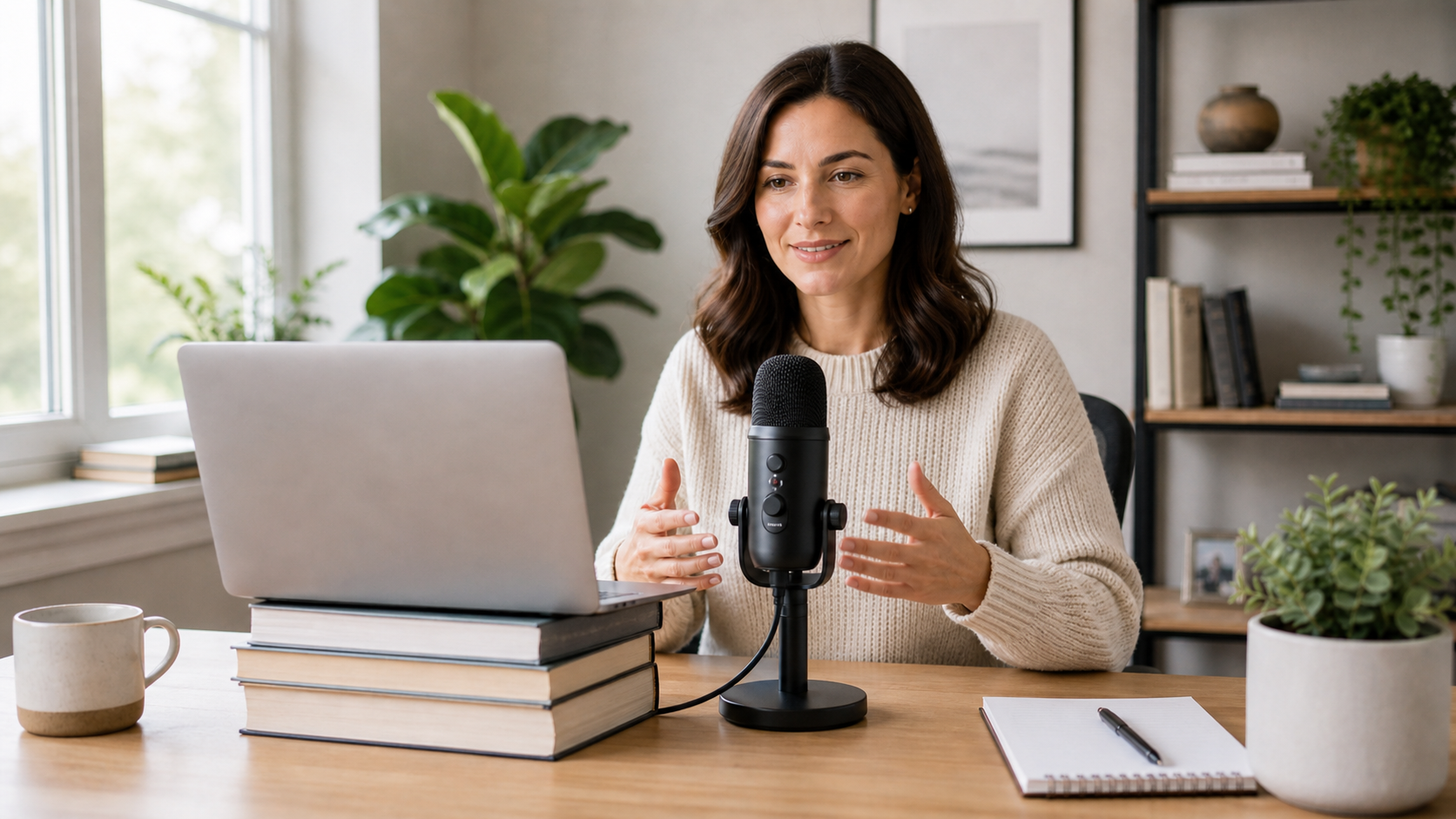
People will forgive bad video before they will forgive bad audio.
Use a better microphone if you can
Audio is easy to overlook, but it matters. A poor microphone can make you sound distant, muffled, or hard to understand. If people struggle to hear you, they will struggle to stay focused on what you are saying. It’s funny how people will often forgive bad video, as long as the audio is good, but if the audio is bad—even with pristine video—they will often stop watching.
A simple USB microphone, lavalier mic, or good headset can make a big improvement. Again, you don’t have to invest in a microphone that causes hundreds of dollars to ensure that you have good sound. When I first began podcasting, I used a simple microphone that cost $55. Stay away from using a built-in microphone on a laptop. Most of us own ear buds (wired or wireless), and we use them with our computers every day. This is a fantastic way to get audio into your computer, and to your conferencing calls, without sacrificing quality, and the good news is that you already own them!
Clear audio makes you sound more professional before people even think about the camera. Don’t ignore your audio set up to invest in a better camera.
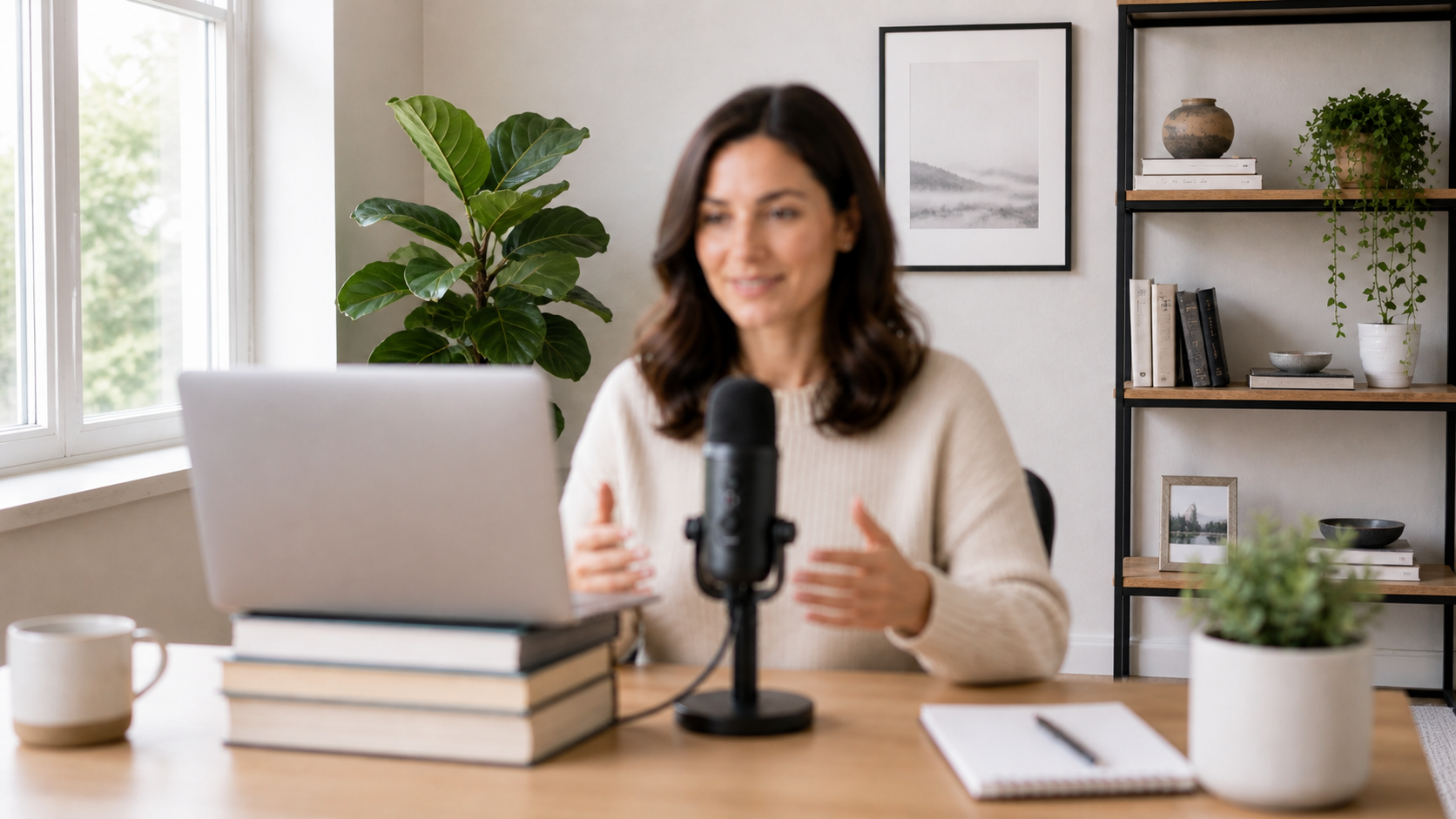
Your background can enhance or detract from your overall presentation
Clean up your background
It continually amazes me how many times I have seen people on video calls, looking very nice, well lit, very prepared in their call or presentation, only to have a completely cluttered and unsightly background. This is perhaps one of the biggest mistakes I’ve seen people make, and this is true even for high level execs, and CEOs!
Look, your background does not need to be perfect, but it should be intentional. A messy room, cluttered desk, or a distracting background can pull attention away from you. Worse yet, it pulls attention towards the clutter, and takes an otherwise professional look, and destroys it. You can give an amazing presentation, but all people will talk about is how messy the office or location was in the call.
Before a call, take a quick look behind you. Remove anything distracting, straighten up the space. Keep it simple. Your background should support the conversation, not compete with it.
I often tell clients that they should dedicate a space in their home or office strictly for video calls, or video presentations. It doesn’t have to be elaborate, or a Hollywood set. It simply needs to be a clutter-free space, with a nice background, and contain all of the elements needed to make your videos.
Final Thought
Looking better on video calls is not about being fake or overly polished. It’s about removing distractions.
Raise the camera.
Improve the light.
Make sure people can hear you.
Clean up what is behind you.
Those small things can make a big difference in how people experience you on camera.